Blinking LED
- Arduino Uno
- Easy
- Secondary
- High school
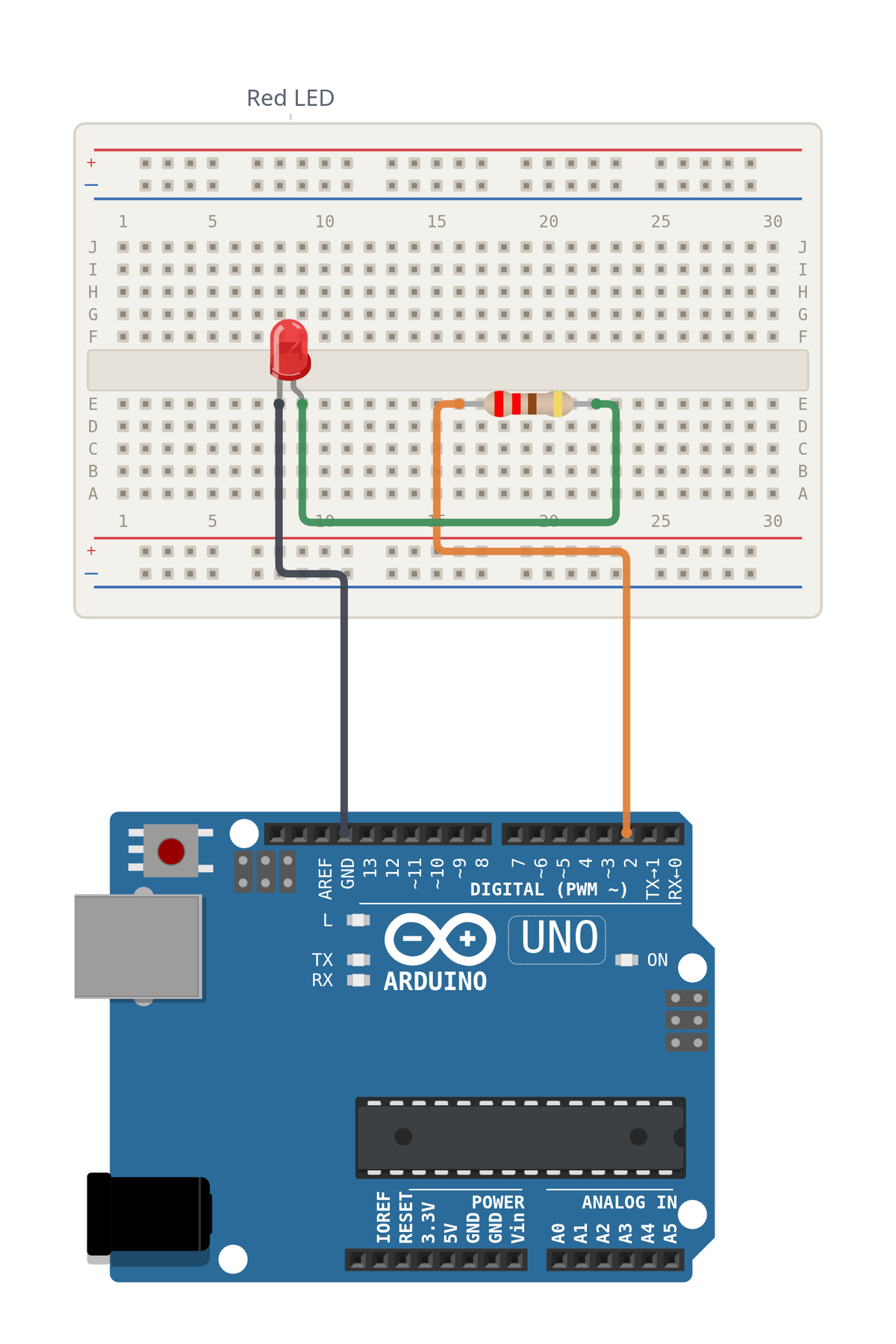
About this circuit
A single LED turns on for half a second and off for half a second, repeating endlessly. This is the fundamental "Hello World" of electronics, introducing students to basic wiring and coding.
What to expect
Watch for students putting the LED in backwards. The longer leg (anode) must connect to the resistor and Pin 2, while the shorter leg (cathode) goes to GND. If a student's code uploads but the light stays off, flipping the LED around is the first thing to check.
Created by John Tafui
Wiring
| Arduino pin | What is connected | Mode |
|---|---|---|
| 2 | Red LED through a 220 ohm resistor | OUTPUT |
Code
/*
 * Blinking LED
 *
 * A single LED turns on for half a second and off for half a second.
 * This introduces basic wiring, coding, and the concept of an electronic loop.
 *
 * Teaching note: Watch for students putting the LED in backwards.
 * The longer leg (anode) connects to the resistor and Pin 2,
 * while the shorter leg (cathode) goes to GND.
 * If the code uploads but the light stays off, try flipping the LED around.
 */

// We name the pin here so we can just say 'RED_LED' later.
// In math terms, this is like defining a constant at the start of a problem.
const int RED_LED = 2;

void setup() {
  // Start the serial communication so we can print messages to the screen.
  Serial.begin(9600);
  Serial.println("Starting the Blink program...");

  // Tell the Arduino that we want to send electricity OUT of pin 2.
  pinMode(RED_LED, OUTPUT);
}

void loop() {
  // Turn the LED on by sending HIGH voltage (5 Volts)
  digitalWrite(RED_LED, HIGH);
  Serial.println("LED is ON");

  // Wait for 500 milliseconds (half a second)
  delay(500);

  // Turn the LED off by sending LOW voltage (0 Volts)
  digitalWrite(RED_LED, LOW);
  Serial.println("LED is OFF");

  // Wait for another 500 milliseconds before repeating
  delay(500);
}
Build it step by step
Each step shows the board as it should look, with what the step adds highlighted.
Steps
Before you start Do these two things first.
- Put the Arduino and the breadboard next to each other
- Unplug the USB cable Build the whole circuit with the power off.
Place the Red LED across E8 and E9 Push the Red LED into the breadboard.
- One leg goes in E8
- The other leg goes in E9
- Put the two legs in different rows Holes in the same row are joined together inside the board.
Place the Resistor (220Ω) across E16 and E22 Push the Resistor (220Ω) into the breadboard.
- One leg goes in E16
- The other leg goes in E22
- Put the two legs in different rows Holes in the same row are joined together inside the board.
Wire up the Red LED — 2 wires Add 2 wires:
- E22, the other leg of the Resistor (220Ω) → E9, the long leg (+) The resistor connects to the long leg (anode) of the LED to limit the current.
- E8, the short leg (−) → GND on the Arduino The short leg (cathode) of the LED connects to Ground to complete the circuit.
Tip: Check the power wires twice. A part on the wrong strip can be damaged.
Wire up the Resistor (220Ω) Add one wire:
- pin 2 on the Arduino → E16, one leg Connect digital pin 2 to the resistor to provide controlled voltage.
Tip: Push both ends in firmly. A loose wire is the most common reason a circuit does nothing.
Check it before you turn it on The circuit is finished. Two last things:
- Compare your board with the picture
- Then plug in the USB cable
Tip: If nothing happens, check the wire you pushed in the least.